I am a Rails developer by heart. My comfort zone is models, controllers and a test suite that goes green. Spending a day inside initramfs hooks, evdev ioctls and device-tree platforms is not where I normally live — which is exactly why this was worth writing down.
Earlier this year I got an external monitor working on Asahi Fedora by building the Fairydust kernel. This time I went further: a clean wipe, Asahi Arch (ALARM) underneath, and Omarchy 4 on top.
The install itself takes an hour. The remaining day went to four bugs that share one shape: an assumption from x86 that does not crash on ARM — it just quietly returns the wrong answer. Those are the interesting ones, so they get the most space here.
Overview
- Installed Asahi Arch (ALARM) from macOS, then Omarchy 4 by following the
omarchy-macfork's own README. - Rebooted into a machine with no Wi-Fi, no Bluetooth, no Touch Bar, no audio — one missing initramfs hook.
- Restored the audio stack, which Omarchy does not install on Apple Silicon.
- Built the Fairydust kernel for USB-C DisplayPort Alt Mode.
- Fixed clamshell mode, screen brightness, and Bluetooth pairing.
- Then found the quieter ones: no swap at all (two hard freezes), an update command that cannot update itself, and a snapshot that could not be restored.
Omarchy 4, "Quattro"
Omarchy 4 shipped as Quattro, and DHH presents the release himself in an 81-minute walkthrough. If you are arriving from macOS and want to know what this thing actually is before wiping a disk for it, that is the place to start — it is a tour of the system by the person who designed it, not a feature list.
One stretch of it explains something you feel directly on Apple Silicon. From 49:50 he covers packaging: after a rough year for the AUR — outages, and some security trouble — Omarchy stopped depending on it at runtime and now builds, verifies and hosts its own packages instead. That repository was x86-only, so on ARM everything had to be compiled on your machine, and my install took about 40 minutes. The fork now publishes an aarch64 repo of its own, and the README measures a current install at around fifteen minutes with almost nothing built locally.
1) Install Asahi Arch, then Omarchy
Follow the guide in the repository itself, not this post. The
omarchy-mac README is the
maintained install document — partitioning, the Asahi Alarm installer, initial
Arch setup, creating your user, and the install itself. It is kept current with
the fork; everything below is only a summary of the path I took, and the rest of
this post starts after the install has finished.
The short version. Run the Asahi Alarm installer from macOS and pick Asahi Arch (ALARM) Minimal:
curl https://asahi-alarm.org/installer-bootstrap.sh | sh
Boot the result, update, and create a regular user — the Omarchy installer
refuses to run as root and calls sudo where it needs to. Then install from the
Apple Silicon fork:
sudo pacman -Syu
git clone --branch quattro https://github.com/omacom/omarchy-mac.git ~/.local/share/omarchy
cd ~/.local/share/omarchy && bash install.sh
Mine took about 40 minutes, nearly all of it compiling. Since then the fork has
published an aarch64 package repo, and the README now measures the same install
at roughly fifteen minutes. A few packages still have no ARM build and are
reported at the end instead of failing the run — that is expected. If mirrors
fail, run bash fix-mirrors.sh from the repository root and retry.
Two things the README covers that are easy to skip and expensive to skip: back macOS up first, and leave at least 50 GB free (100 GB if you intend to build the kernel in section 4). Check the reported package failures before you reboot.
Let it finish, then reboot. This is where the trouble starts.
2) The bootstrap trap: no Wi-Fi after install
The machine came up with no Wi-Fi, no Bluetooth, no Touch Bar, no ambient light
sensor and no audio. dmesg showed every one of them failing the same way:
brcmfmac 0000:01:00.0: Direct firmware load for brcm/brcmfmac4378b1-pcie.bin failed with error -2
hci_bcm4377 0000:01:00.1: Unable to load firmware; tried 'brcm/brcmbt4378b1-apple,honshu-m.bin' ...
apple-z2 spi0.0: unable to load firmware
iio_aop_als als.0.auto: probe with driver iio_aop_als failed with error -2
Error -2 is ENOENT. Every Apple vendor firmware blob was missing at once,
which points at one thing: the asahi initcpio hook, which unpacks
<ESP>/vendorfw/firmware.cpio into a tmpfs at /lib/firmware/vendor during
early boot.
One command confirms it never ran:
findmnt -t tmpfs /usr/lib/firmware/vendor # silence = the hook did not run
The cause is /etc/mkinitcpio.conf.d/omarchy_hooks.conf, which assigns
HOOKS rather than amending it:
HOOKS=(base udev plymouth keyboard autodetect microcode modconf kms keymap consolefont block encrypt filesystems fsck btrfs-overlayfs)
Arch ARM ships /etc/mkinitcpio.conf with HOOKS=(base asahi udev ...), and
drop-ins are sourced after the main config — so asahi is silently discarded.
This is a genuine bootstrap trap: with no Wi-Fi you cannot pacman -S your way
out. There is one escape hatch, and it has to be set up before you need it —
section 8 covers it.
This is now fixed upstream. Commit 73877483 (2026-08-18) puts the hook
back inside omarchy_hooks.conf itself, so a fresh install from quattro never
hits it. I reported it as
omarchy-mac#156; the fix is
the same shape as the workaround I had been running, which I have since removed.
If you are on an older checkout, add a drop-in that sorts after Omarchy's —
zz-asahi-hook.conf — copying HOOKS, inserting asahi right after base,
and guarding on " ${HOOKS[*]} " != *" asahi "* so it stays a no-op once
upstream handles it.
Either way, verify the built image before you reboot. This is the one habit worth taking from this section:
sudo mkinitcpio -P
sudo lsinitcpio /boot/initramfs-linux-asahi.img | grep hooks/asahi
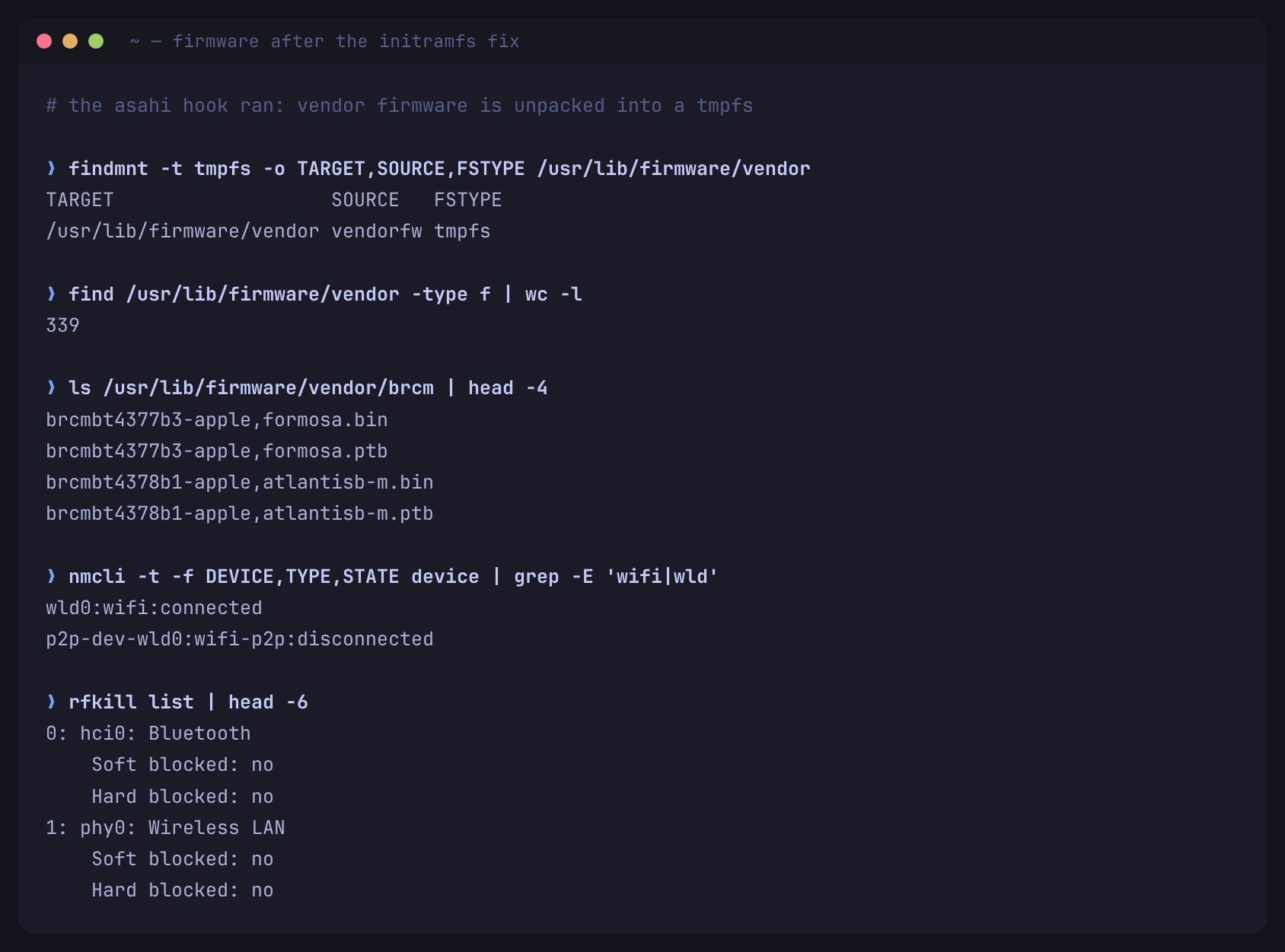
After a reboot, /usr/lib/firmware/vendor is a tmpfs with ~339 files, and
Wi-Fi, Bluetooth, Touch Bar, the light sensor and the camera ISP all come back
at once.
3) Audio
Firmware alone was not enough — Omarchy did not pull in the Apple Silicon audio stack. Both ALSA cards existed but PipeWire had zero sinks:
sudo pacman -S --needed asahi-audio speakersafetyd pipewire-pulse pipewire-alsa
sudo systemctl enable --now speakersafetyd
speakersafetyd is not optional: the UCM profile refuses to enable the speakers
without it, because it is what stops you physically destroying them.
Fixed upstream since. The fork now ships install/hardware/apple/audio.sh,
which does both during install, and sets the wireless regulatory domain from
your timezone as well — mine had defaulted to country 00, which forces passive
scan on 5 GHz. Only worth doing by hand on an older checkout.
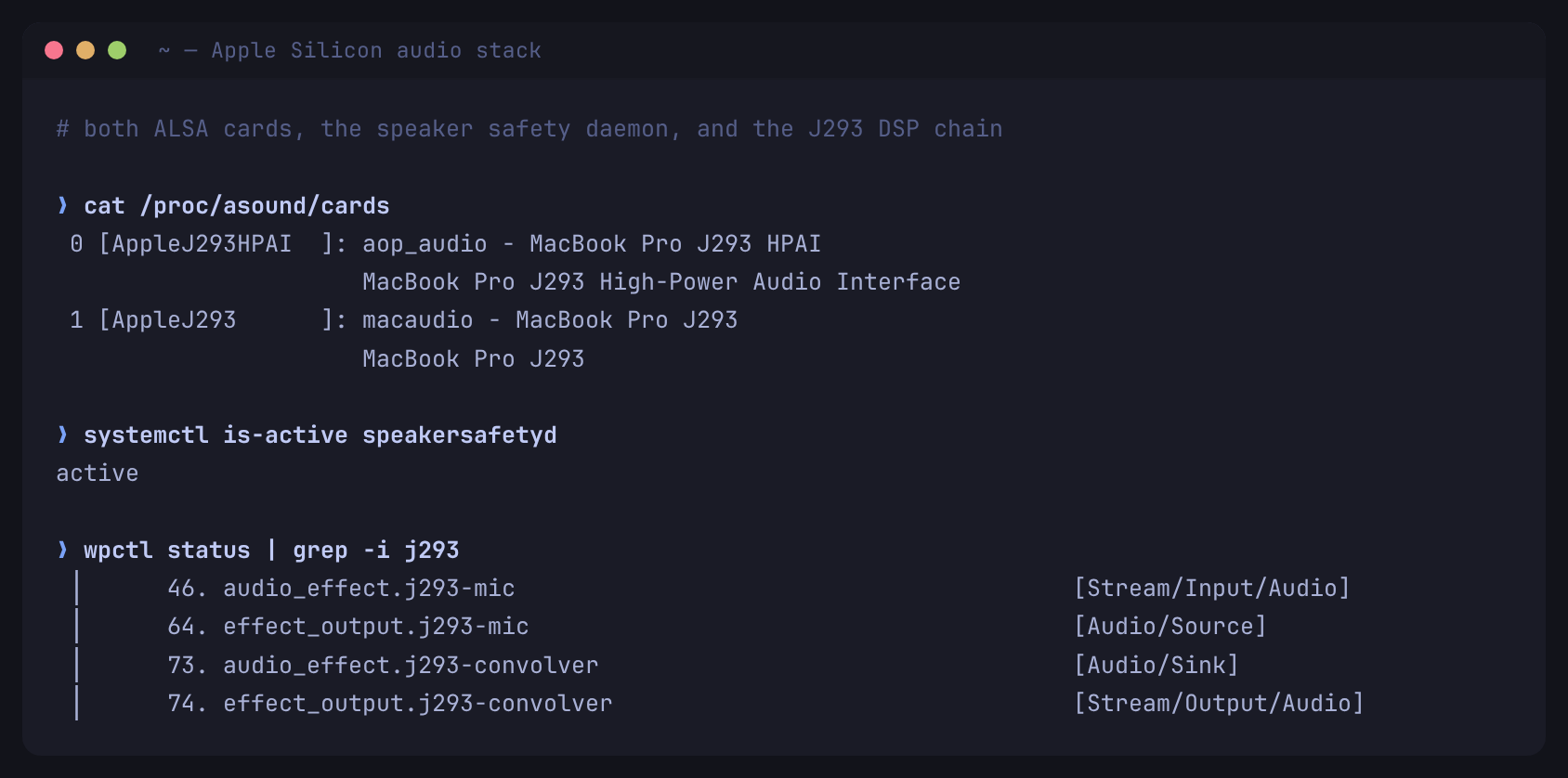
speakersafetyd running, and the J293 convolver chain that shapes what actually reaches the speakers.4) The Fairydust kernel for the external monitor
Stock linux-asahi still has no USB-C DisplayPort Alt Mode, so the external
monitor needs a patched kernel. I packaged it for pacman rather than building it
by hand as I did on Fedora — that keeps the stock kernel installed as a rescue
entry, and GRUB lists both.
The build is pinned to one exact Asahi release (7.1.6-1 plus a 13-commit
patch). Budget 1–3 hours, keep it plugged in, and expect ~35 GiB of scratch
space. Afterwards:
$ uname -r
7.1.6-1-1-fairydust-ARCH
$ ls /sys/class/drm/ | grep DP
card3-DP-1
The scripts
Three files did the work, and they are on this site if you want them:
-
PKGBUILD— buildslinux-asahi-fairydustpinned to Asahi 7.1.6-1, and sets a distinctlocalversionso it installs beside stocklinux-asahirather than over it:echo "-${_asahirel}-${pkgrel}-fairydust" > localversion.10-pkgrel -
build-and-install.sh— refuses to run unless it is on aarch64, on a J293, on Arch and with 35 GiB free; then installs the build dependencies and the pinned Rust toolchain, runsmakepkg, installs the package, rebuilds the initramfs, updates m1n1 with the patched DTBs and regenerates the GRUB menu. -
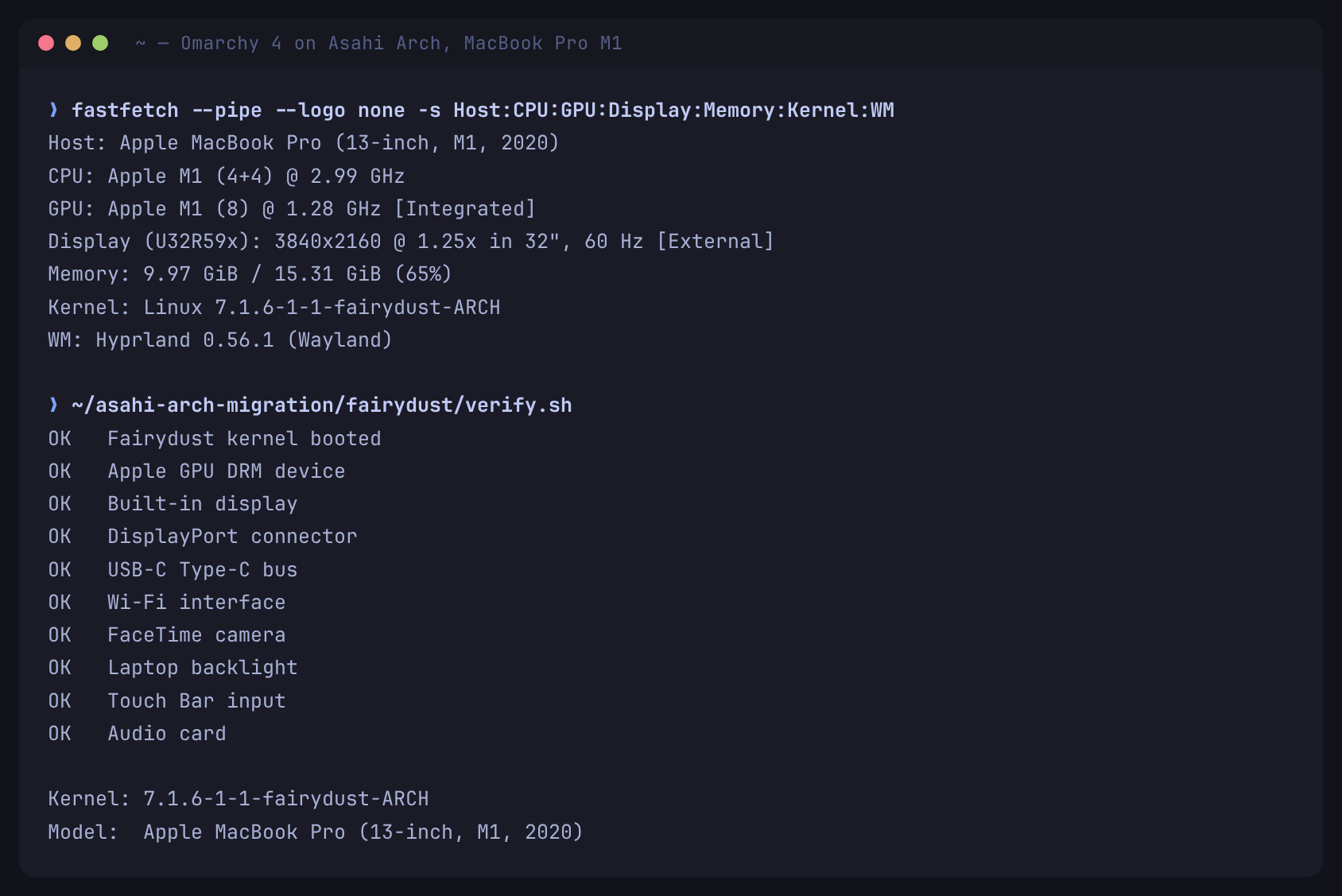
verify.sh— the OK/FAIL list in the screenshot above. Run it after the first Fairydust boot.
Two things the package needs are not mine to hand out, so the
README explains how to produce them: the
kernel config (start from zcat /proc/config.gz on a machine running stock
linux-asahi) and fairydust.patch itself, which is the Asahi Linux project's
work on their fairydust branch
and should be generated from their tree:
git diff asahi-7.1.6-1..origin/fairydust > fairydust.patch
updpkgsums   # the PKGBUILD pins checksums
Read them before running them. The hardware guard is for my machine, and the version pin is the whole point — see below.
The part worth remembering: this package does not follow linux-asahi
updates. When the stock kernel moves past 7.1.6, Fairydust must be rebuilt
against the new tree and the patch may not apply. Do not uninstall the working
version until the rebuild is tested, or you will boot into a machine with no
external display and no obvious reason why.
5) Clamshell mode — three layers deep
Closing the lid with the monitor attached should blank the internal panel and keep working. It did nothing. This one took three attempts because each fix revealed the next problem.
Layer one. omarchy-hw-laptop-closed reads the lid from ACPI:
for state in /proc/acpi/button/lid/*/state; do ...; done
exit 1
Apple Silicon is a device-tree platform with no ACPI at all. The glob never matches, the loop body never runs, and the script always reports "open".
Layer two. The obvious fix is to read SW_LID from evdev instead. My first
probe suggested the driver did not maintain the switch-state bitmap — but that
turned out to be my own measurement racing the event. A proper probe, reading
state immediately after the event and sanity-checking the ioctl encoding
against a keyboard, showed EVIOCGSW works correctly. No kernel bug. Worth
saying plainly, because I nearly filed one.
Layer three. Dropping a fixed script in /usr/local/bin appeared to work
for exactly one second, then reverted. omarchy-hyprland-monitor-watch re-runs
the clamshell handler 1s, 3s and 7s after any monitor change, and its PATH
starts with /usr/share/omarchy/bin — ahead of /usr/local/bin. The override
was being bypassed by the packaged version.
Fix. Stop fighting the watcher and move the decision into monitors.lua,
which Hyprland re-evaluates on every reload, including the watcher's:
local state_home = os.getenv("XDG_STATE_HOME") or (os.getenv("HOME") .. "/.local/state")
local lid_closed = file_exists(state_home .. "/omarchy/lid-closed")

if lid_closed and external_display_connected() then
  hl.monitor({ output = "eDP-1", disabled = true })
else
  hl.monitor({ output = "eDP-1", mode = "preferred", position = "0x0", scale = 2 })
end
The lid flag is written by Hyprland's switch bindings, which are reliable:
o.bind("switch:on:Apple SMC power/lid events",  nil, "omarchy-lid-clamshell closed", { locked = true })
o.bind("switch:off:Apple SMC power/lid events", nil, "omarchy-lid-clamshell open",   { locked = true })
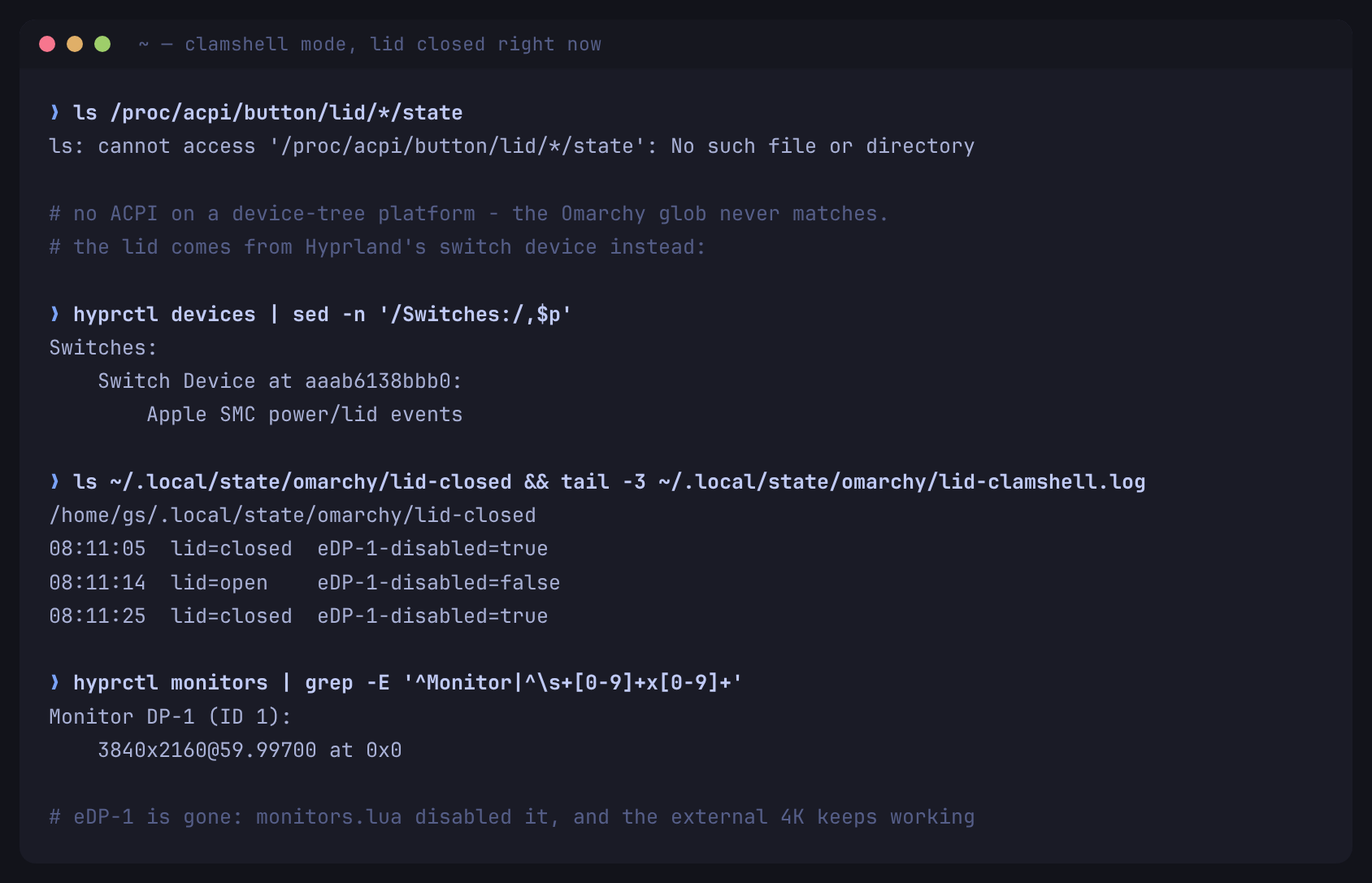
eDP-1 gone while the external 4K keeps running.One nice surprise: systemd-logind gets this right on its own. It counts
connected non-eDP connectors, treats the machine as docked, and applies
HandleLidSwitchDocked=ignore — so it never suspends while the monitor is
attached. That part needed no work at all.
6) Screen brightness was dimming the Touch Bar
The brightness keys "did nothing". Capturing the actual keycodes showed the keys
were fine — both the Touch Bar and my Bluetooth keyboard emit a correct
KEY_BRIGHTNESSDOWN, already bound by Omarchy. The bug was in device selection:
# omarchy-hw-display
device="$(ls -1 /sys/class/backlight | grep -vx appletb_backlight | head -n1)"
First entry alphabetically, then a search for gmux / amdgpu / intel /
acpi_video — all x86-only names. On this machine:
228600000.dsi.0    <- digits sort first, so this wins
apple-panel-bl     <- the actual panel, max 509
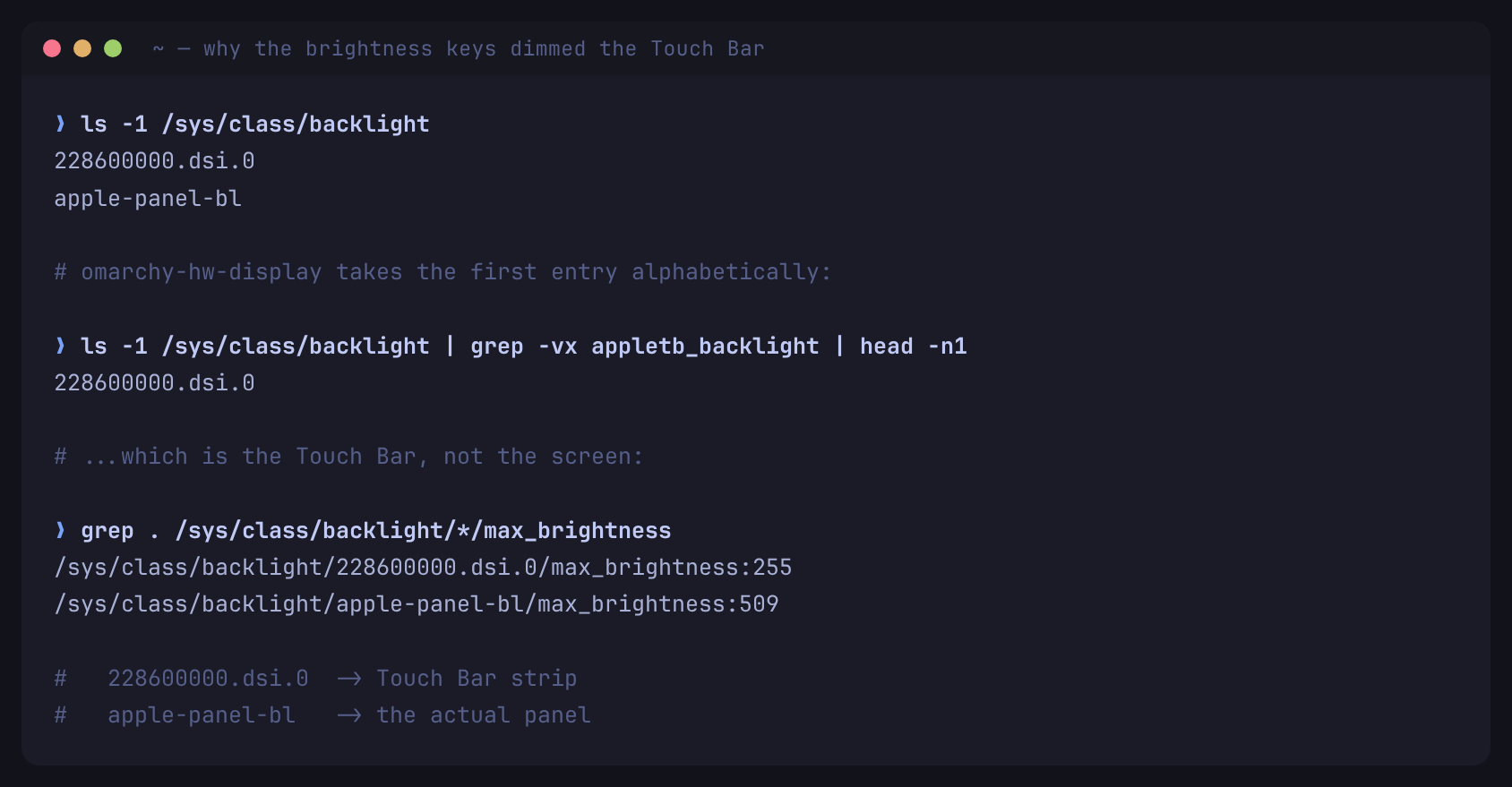
228600000.dsi.0 is the Touch Bar backlight. The keys had been dimming the
strip above the keyboard the whole time — which is why it looked like they
controlled the keyboard light.
Correction. I first wrote that the fix is a one-line preference for
apple-panel-bl in a /usr/local/bin override. It is not. Mine sat there doing
nothing for a day, because envs.lua puts Omarchy's own bin directory at the
front of PATH on purpose:
table.insert(kept, 1, bin_dir)
hl.env("PATH", table.concat(kept, ":"))
Nothing in /usr/local/bin can shadow a packaged omarchy-* command — the same
trap as section 5, and I walked right into it. Use the script's own
OMARCHY_BACKLIGHT_PATH setting instead, pointed at a folder holding only the
real panel:
mkdir -p ~/.local/state/omarchy/backlight
ln -s /sys/class/backlight/apple-panel-bl ~/.local/state/omarchy/backlight/
-- ~/.config/hypr/hyprland.lua
hl.env("OMARCHY_BACKLIGHT_PATH", os.getenv("HOME") .. "/.local/state/omarchy/backlight")
There was also a second bug behind the same symptom.
omarchy-brightness-display picks its target from the focused monitor:
+ monitor=DP-1
+ [[ DP-1 =~ ^(eDP|LVDS|DSI)- ]]      <- not internal
++ omarchy-brightness-display-ddc DP-1 10%-
+ exit 1
With the lid shut and only the external 4K attached, the keys try DDC/CI on the
Samsung and never touch a backlight at all. So the Touch Bar bug only shows up
once the laptop screen is focused. External monitor brightness is not fixable
here: ddcutil detect reports No display adapters with i2c buses appear to exist, so that screen needs its own buttons.
7) Bluetooth: use the right transport
My Magic Trackpad and keyboard paired but never connected. Two separate causes:
The trackpad was plugged in over USB. Apple Magic devices switch to wired
mode and refuse Bluetooth while connected. Unplugging fixed it — and as a bonus,
the magicmouse: unable to request touch data (-32) errors that broke gestures
turn out to happen only over USB. Over Bluetooth it registers cleanly.
The keyboard needed a re-pair, but would not show up in scans. Both devices
are Bluetooth Classic (BR/EDR), not BLE, and a plain scan on misses them:
bluetoothctl
> menu scan
> transport bredr
> back
> scan on
They appear immediately. Pair while the scan is still running — BlueZ drops undiscovered devices from its cache the moment scanning stops, which is what made this look harder than it was.
8) The gaps that only show up later
Everything above showed up on the first boot. These four did not. They all have the same shape: a config file that is present and correct, wired to nothing.
No swap at all, and two hard freezes
The machine locked up twice, both times needing the power button, and the
journal just stops mid-line — no panic, no oom-kill, nothing.
The cause was zero swap: none at all, on a 16 GB machine running Chromium, Docker, Postgres and a 4K screen. With nowhere to put memory pages, the kernel throws away cached program code instead and then thrashes reading it back. It freezes, and since the OOM killer is never reached, nothing gets logged.
Omarchy does ship a zram config, at
/usr/lib/systemd/zram-generator.conf.d/90-omarchy.conf. Nothing installs the
package that reads it. The migration that would have was marked as applied
without ever running — fresh installs mark every existing migration as done:
$ ls ~/.local/state/omarchy/migrations/1773113401.sh   # exists
$ pacman -Q zram-generator                             # not found
systemd-oomd was running but watching nothing, so there was no safety net
either. Still unfixed upstream at the time of writing:
sudo pacman -S zram-generator
sudo systemctl daemon-reload
sudo systemctl start systemd-zram-setup@zram0.service
If swapon --show prints nothing on your install, that is the bug.
omarchy update cannot update Omarchy
On ARM the core packages are built locally and exist in no repository:
omarchy           4.0.0-1   repo=NOT IN ANY REPO   packager=Unknown Packager
omarchy-settings  4.0.0-1   repo=NOT IN ANY REPO
omarchy-update-available checks git only when OMARCHY_PATH points at a dev
checkout, which it does not. It falls back to checkupdates, which finds
nothing, because the package is in no repo. So it always says "Omarchy is up
to date". Mine said that while sitting 72 commits behind.
omarchy update still does the rest of its job — pacman -Syu, AUR, mise,
migrations. It just cannot touch Omarchy itself. To really update, rebuild from
the checkout:
cd ~/.local/share/omarchy
git pull --ff-only
./build-packages.sh
sudo pacman -U build-output/*.pkg.tar.xz
The PKGBUILD does not bump the version on a rebuild, so pacman calls this a reinstall and the version number stays the same. Check the files instead.
The pre-update snapshot could not be restored
omarchy update takes a snapper snapshot before it starts, which is the right
idea. But on a Mac the restore path called limine-snapper-restore, and limine
is never installed here — Macs boot m1n1 → u-boot → GRUB. So the snapshot was
real but unusable, which is worse than having none. Fixed upstream in
68965cfe.
The way out of the bootstrap trap
Section 2 leaves you offline with no way to install the fix. USB tethering is the
escape hatch — but this machine has no USB-A ports, so USB comes through the
USB-C dock, and on my install tethering did not work at all. usbmuxd was
missing: the ipheth module was there, but nothing did the trust handshake, so
the phone stayed in charge-only mode with no USB configuration active.
sudo pacman -S usbmuxd
After that, plugging the phone in sets it up on its own and an enu* interface
appears for NetworkManager. Nothing to enable. Do this while you still have
network — a recovery tool you cannot install is not one.
A USB ethernet adapter in the dock is the simpler version: no pairing, no trust prompt. Bluetooth tethering is not an option — it uses the same Apple firmware as Wi-Fi, so if the hook fails, both are gone.
What still does not work
Worth being honest about the remaining gaps:
- Hardware video decode.
avdwantsapple/avd-fw-v2-t0.bin, which Apple does not ship in the vendor firmware set. Software decode covers it. - External monitor brightness. No I2C buses, so no DDC/CI.
- mpv crashes with the webcam overlay — a SIGSEGV inside
libvulkan_asahiwhile uploading a frame via libplacebo. Recording itself works; the webcam overlay does not. - Wi-Fi Direct / P2P is unsupported by this firmware (
-52on every attempt).
Sources
- Asahi Linux — the project making any of this possible
- Omarchy and the
omarchy-macfork for Apple Silicon - Omarchy Quattro — DHH's walkthrough of the release
- My earlier post on Asahi Fedora — building Fairydust by hand
asahi-scripts, for/usr/lib/initcpio/hooks/asahi— reading it is what explained the firmware failures
Was it worth it?
Yes, and not only for the machine. As a Rails developer, most of my debugging is
one layer deep: read the stack trace, fix the code. Every bug here failed
silently — a glob that matched nothing, a head -n1 that picked the wrong
device, a PATH that put the packaged script first, a migration marked done
that never ran, an update command that reported "up to date" for a package it
cannot see. Nothing crashed. Everything returned a plausible wrong answer.
The habit that actually worked was refusing to trust my own reasoning. Three
times I decided "this should work now" after reading a config file, and three
times I was wrong — including the brightness fix in section 6, which I published
here before finding out it had never run at all. What settled it each time was
watching the thing happen: probing the lid switch as it closed, timing the
monitor watcher, capturing the real keycode, and running the brightness command
under bash -x to see which branch it took.
If you have not watched a fix work, you do not have a fix yet.
Note: If you follow this guide, proceed with caution. I don't take responsibility if you damage your system. This involves building and installing a custom kernel and editing boot configuration, which can potentially break things. Keep the stock kernel installed, and verify your initramfs before you reboot.